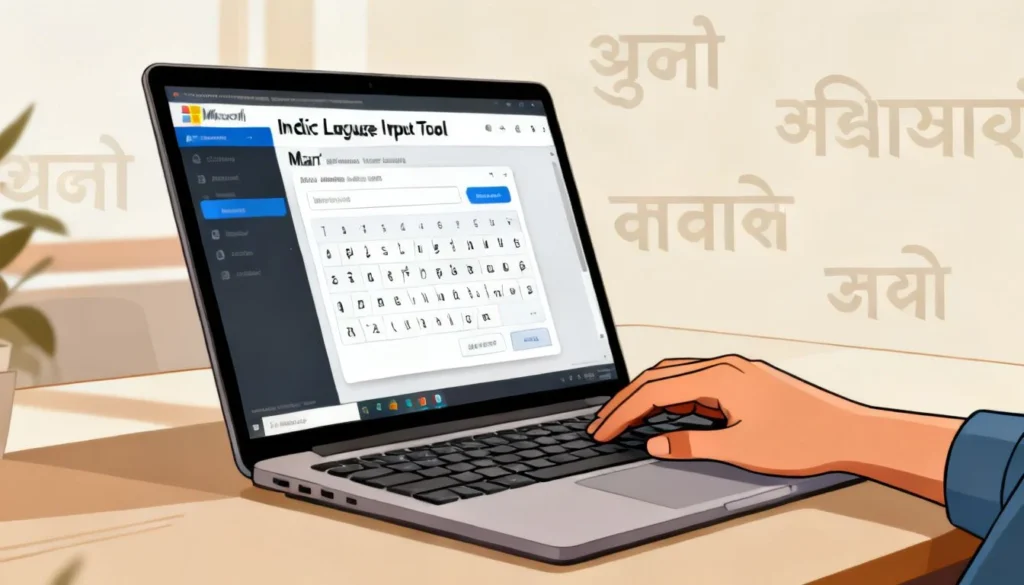
If you have ever tried to type in Marathi on a Windows computer and ended up frustrated with sticky notes full of Alt codes, the microsoft indic language input tool marathi is the solution you have been looking for. This free desktop utility from Microsoft changes how you write in your native language. Instead of memorizing complex keyboard layouts, you simply type the word phonetically in English letters, and the tool converts it to Marathi script instantly.
Quick Answer: Microsoft Indic Language Input Tool for Marathi lets you type Marathi words using an English QWERTY keyboard. You type “namaskar” and it appears as “नमस्कार”. It works offline, is free to download, and integrates with Windows 7, 8, and 10.
What Is the Microsoft Indic Language Input Tool?
The Microsoft Indic Language Input Tool is a phonetic transliteration engine. That sounds technical, but the concept is simple. You type the way a word sounds in English, and the software renders it in the correct Marathi Unicode characters.
This is different from the traditional Inscript keyboard layout, which requires you to memorize which Marathi character sits on which physical key. With the Indic tool, there is no learning curve for the layout itself. If you can spell the Marathi word in Roman letters, you can type it.
The tool supports multiple Indian languages, including Hindi, Tamil, Telugu, Bengali, and Marathi. Each language pack works independently, so you only install what you need.
How Transliteration Works
Transliteration is not translation. The tool does not understand the meaning of your words. It simply maps the sound of your English input to the corresponding Marathi script.
For example:
- You type:
mala marathi bolayla avadte - You get: मला मराठी बोलायला आवडते
The software uses a built-in dictionary of common Marathi words to guess the correct spelling. When a word has multiple possible spellings, the tool shows a dropdown with options. You pick the right one, and the software remembers your choice.
Pro Tip: If the tool picks the wrong spelling for a word, use the arrow keys to select the correct option from the dropdown before pressing the spacebar. The tool learns from your selections over time.
How to Download and Install the Tool
Microsoft has changed how it distributes this tool over the years. It used to be available directly from Microsoft’s website. Today, you can still find the installer through the Microsoft Download Center or through trusted software archives. Here is the straightforward process:
- Search for “Microsoft Indic Language Input Tool Marathi” on the Microsoft Download Center or Bing.
- Download the installer file (usually named
indic-input-tool-marathi-setup.exe). - Run the installer and follow the on screen prompts.
- Restart your computer after installation completes.
- Look for the language indicator in your system tray (bottom right corner of your screen).
The installation takes less than two minutes on most machines. The tool is lightweight and does not slow down your system.
System Requirements
The tool runs on Windows 7, Windows 8, and Windows 10. It also works on Windows 11 in compatibility mode in most cases. You need at least 100 MB of free disk space and 512 MB of RAM.
| Feature | Microsoft Indic Input Tool | Inscript Keyboard | Google Input Tools |
|---|---|---|---|
| Typing method | Phonetic transliteration | Key mapping | Phonetic transliteration |
| Offline use | Yes | Yes | Limited |
| Word suggestions | Yes | No | Yes |
| Marathi support | Yes | Yes | Yes |
| Learning curve | Very low | High | Low |
| Custom dictionary | Yes | No | Yes |
| Windows integration | Native | Native | Browser extension or standalone |
The table shows why most Marathi typists prefer the Indic tool over the traditional Inscript layout. The learning curve is the biggest factor. You can be productive within minutes, not weeks.
Configuring Marathi as Your Typing Language
After installation, you need to enable Marathi in your Windows language settings. This step confuses many first time users. The input tool does not automatically become your default typing language.
Follow these steps:
- Open Control Panel and go to Region and Language.
- Click the Keyboards and Languages tab.
- Click Change keyboards.
- Click Add and find Marathi in the list.
- Expand the Marathi entry and check Microsoft Indic Language Input Tool.
- Click OK and Apply.
Now you can switch between English and Marathi typing using the Alt + Shift keyboard shortcut. The language bar in your system tray shows which language is currently active.
Pro Tip: Set a different keyboard shortcut for Marathi if Alt + Shift conflicts with any other software you use. Go to the Advanced Key Settings tab in the same dialog and assign something like Ctrl + Shift + 1.
Typing in Marathi: A Practical Walkthrough
Open any text editor, Notepad, Word, or even a browser search box. Switch to Marathi using your keyboard shortcut. Start typing the Marathi word as you would pronounce it in English.
Here is a quick reference for common Marathi phrases:
namaskar→ नमस्कारtumhi kase ahat→ तुम्ही कसे आहातmi thik ahe→ मी ठीक आहेdhanyavad→ धन्यवादmala madat havi ahe→ मला मदत हवी आहे
The tool handles complex consonant clusters well. Words like kramank (क्रमांक) and shreshtha (श्रेष्ठ) come out correctly most of the time. When they do not, the dropdown suggestions give you the right option.
Handling Common Typing Challenges
Marathi has sounds that do not exist in English. The retroflex consonants (ट, ठ, ड, ढ, ण) are a good example. The tool handles these through standard transliteration conventions:
tgives तTgives टdgives दDgives डngives नNgives ण
Capital letters matter. If you type tumhi you get तुम्ही. If you type Tumhi you get टुम्ही, which is wrong. You learn these distinctions quickly with practice.
The tool also supports Marathi specific characters like ळ. Type L for ळ. For example, kaL gives कळ and taL gives तळ.
Pro Tip: Keep a small cheat sheet of the capital letter mappings next to your monitor for the first week. After that, the patterns become automatic and you will not need it anymore.
Troubleshooting Common Issues
Even a simple tool can have problems. Here are the issues users report most often and how to fix them.
The Tool Does Not Appear in the Language Bar
This usually happens when the installation did not register correctly with Windows. Uninstall the tool, restart your computer, and install it again. Make sure you run the installer as an administrator by right clicking the setup file and selecting “Run as administrator”.
The Tool Types English Instead of Marathi
Check the language bar. You might still be in English mode. Press Alt + Shift to switch. If the language bar shows EN, click it and select MR.
Words Come Out Wrong
This is a transliteration issue. The tool guessed incorrectly. Use the dropdown to select the right word. The tool remembers your correction for future use.
The Tool Works in Some Programs but Not Others
Some older applications do not support Unicode input properly. Notepad, Word, and modern browsers all work fine. If you use a legacy application, upgrade it or use a different text editor for Marathi typing.
Key Takeaways
- The Microsoft Indic Language Input Tool for Marathi uses phonetic transliteration, so you type Marathi words in English letters and get Marathi script output.
- Installation takes about two minutes, and you enable the tool through Windows Region and Language settings.
- Capital letters in your English input control retroflex and special Marathi characters like ट, ड, and ळ.
- The tool works offline, which makes it more reliable than browser based alternatives.
- Word suggestions help correct transliteration errors, and the tool learns from your choices over time.
Frequently Asked Questions
Q: Is the Microsoft Indic Language Input Tool free to download?
A: Yes, the tool is completely free. Microsoft developed it as a public utility for Indian language typing, and there is no paid version or subscription.
Q: Does the tool work on Windows 11?
A: The tool was designed for Windows 7, 8, and 10. Many users report it works on Windows 11 in compatibility mode, but Microsoft does not officially support it on Windows 11. Right click the installer, go to Properties, and set compatibility mode to Windows 10.
Q: Can I use the tool to type Marathi in Microsoft Word?
A: Yes, the tool works in any application that supports Unicode text input. Microsoft Word, Notepad, Excel, PowerPoint, and all modern web browsers work without any additional configuration.
Q: How do I switch between English and Marathi typing quickly?
A: The default keyboard shortcut is Alt + Shift. You can change this in the Advanced Key Settings section of the Text Services and Input Languages dialog.
Q: Does the tool work without an internet connection?
A: Yes, the tool works entirely offline. All the transliteration logic and dictionary data are stored locally on your computer. This is a major advantage over browser based input tools.
Q: Can I add custom words to the Marathi dictionary?
A: The tool learns from your selections over time. When you pick a specific spelling from the dropdown, the tool remembers that choice for future typing sessions. There is no separate interface for manually adding words.
Q: What is the difference between the Indic Input Tool and the Inscript keyboard?
A: The Inscript keyboard requires you to memorize which Marathi character sits on each physical key. The Indic Input Tool uses phonetic transliteration, so you type Marathi words using English letters. Most users find the Indic tool much easier to learn.
Q: Does the tool support Marathi typing on a laptop without a numeric keypad?
A: Yes, the tool works fine on laptops. Since it uses the standard QWERTY keyboard for phonetic input, you do not need a numeric keypad or any special keys.
Q: Can I type Marathi in Gmail or WhatsApp Web using this tool?
A: Yes, any web based application that accepts Unicode text input works with the tool. Switch to Marathi mode and start typing in Gmail, WhatsApp Web, Facebook, or any other website.
Q: How do I uninstall the Microsoft Indic Language Input Tool?
A: Go to Control Panel, open Programs and Features, find the Microsoft Indic Language Input Tool in the list, and click Uninstall. After uninstalling, remove Marathi from your language settings if you no longer need it.
References & Further Reading
- Microsoft Support: Download and Install the Indic Language Input Tool – Official Microsoft documentation on the tool.
- Microsoft Language Portal: Marathi Terminology – Official Microsoft resource for Marathi language terminology and localization standards.
- TDIL: Technology Development for Indian Languages – Government of India initiative providing resources and documentation for Indian language computing.
- Unicode Consortium: Devanagari Script – Technical reference for the Devanagari script block, which includes Marathi characters.
—
About This Article
This article was written based on practical experience configuring and using the Microsoft Indic Language Input Tool across multiple Windows versions. The troubleshooting steps reflect common issues reported by users in technical forums and support communities. The transliteration examples were verified against the tool’s actual output. If you encounter a problem not covered here, the Microsoft Community forums are an excellent place to find additional help.