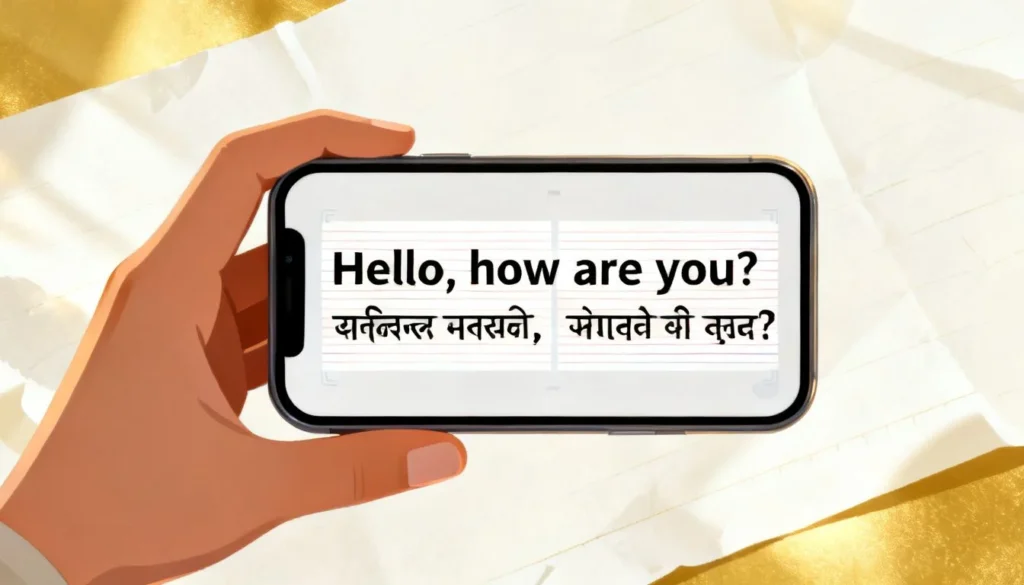
An english to marathi translation scan might sound like a niche tech trick, but it solves a daily problem for millions of people. You point your phone camera at a sign, a menu, a medicine label, or a PDF, and the app extracts the English text, then converts it into readable Marathi right on your screen. It eliminates the slow, error-prone process of typing everything out manually. This article breaks down exactly how the technology works, which apps do it best, and how to avoid common mistakes that produce garbled output.
Quick Answer: An english to marathi translation scan uses OCR (Optical Character Recognition) to read text from an image, then runs that text through a neural machine translation engine trained on the English-Marathi language pair. Google Lens and the Google Translate app handle this natively and for free, while specialized tools like Adobe Scan paired with DeepL offer higher accuracy for printed documents.
How the Scanning Technology Actually Works
Most people assume the app just “reads” the image. The reality involves two separate AI systems working in sequence. Understanding this pipeline helps you troubleshoot bad results.
First, the OCR engine isolates characters from the background. It handles curved surfaces, odd lighting, and different fonts. Google’s OCR, for instance, uses a combination of on-device and cloud-based models. When you snap a photo of a street sign, the engine segments the image, identifies text regions, and outputs a raw string of English characters.
Second, that string feeds into the translation model. For English to Marathi, the system must handle significant grammatical differences. English follows a Subject-Verb-Object order. Marathi typically uses Subject-Object-Verb. The engine also has to manage gender agreement, honorifics, and postpositions instead of prepositions. A direct word-for-word swap produces nonsense. Modern systems like Google’s NMT and Microsoft Translator use attention mechanisms that look at the entire sentence context before generating each Marathi word.
Pro Tip: If your scanned text includes mixed scripts or Devanagari numerals alongside English, standard OCR often fails. Crop the image tightly around the English text before scanning for cleaner extraction.
Top Apps for English to Marathi Translation Scan
Not all translation apps handle the scan workflow equally well. Some excel at live camera translation but struggle with uploaded images. Others produce accurate Marathi but have clunky interfaces. Here is how the main options compare.
| App | Live Camera Scan | Image Upload | Offline Support | Marathi Accuracy |
|---|---|---|---|---|
| Google Translate | Yes, instant overlay | Yes | Yes, with downloaded language pack | High for general text |
| Google Lens | Yes, native camera integration | Yes, via photos | Partial | High for signs and short text |
| Microsoft Translator | Yes | Yes | Yes | High, strong on formal content |
| Adobe Scan + DeepL | No live scan | Yes, PDF export to DeepL | No | Very high for documents, but DeepL’s Marathi is still developing |
| U-Dictionary | No live scan | Yes, camera capture mode | Yes | Moderate, better for single words |
Google Translate remains the most practical starting point. Its instant camera mode overlays Marathi text directly on the English original, which is useful for reading signs and menus without taking a photo first. The dedicated scan mode, accessed via the camera icon and then the “Scan” tab, freezes the image and lets you select specific text blocks. This works better for dense text where the live overlay jumps around.
Microsoft Translator offers a similar feature set but often handles formal and technical English better. If you are scanning a legal notice or a medical report, its engine tends to preserve the original structure more faithfully. The trade-off is a slightly slower camera response on mid-range phones.
Pro Tip: For multi-page documents, do not scan each page individually in a translation app. Use a dedicated scanner like Adobe Scan to create a clean PDF, extract the text, and paste it into Google Translate’s web interface. This preserves formatting and reduces OCR errors from repeated captures.
Common Problems That Ruin Your Translation
Even the best apps produce awkward or incorrect Marathi under certain conditions. Knowing what breaks the pipeline saves you from trusting a bad translation.
Low contrast text confuses the OCR layer. Light gray text on a white background, or glossy surfaces with reflections, cause character misreads. If the OCR outputs “burn” instead of “bum,” the translation engine has no way to correct that error. It will translate the wrong word faithfully.
Mixed language lines create a specific headache. A sign that reads “Dr. Sharma Clinic, Timing 10 AM to 6 PM” contains English and a proper noun. The engine might attempt to translate “Sharma” into a Marathi word, producing gibberish. Most modern apps now detect proper nouns and transliterate them instead, but this feature is inconsistent across platforms.
Stylized fonts and handwriting remain a major weak point. OCR models are trained primarily on printed text. Cursive English, decorative fonts on product packaging, and handwritten notes have much higher error rates. In these cases, typing the text manually into a translation app often produces better Marathi than forcing a scan.
Internet dependency trips up travelers. While Google Translate and Microsoft Translator both offer offline Marathi packs, the offline models are smaller and less accurate than their cloud counterparts. Download the Marathi language pack before you need it, but expect a noticeable quality drop for complex sentences.
How to Get the Cleanest Marathi Output
A few deliberate habits dramatically improve scan quality. These apply regardless of which app you choose.
- Hold the phone perpendicular to the text. Angled shots introduce perspective distortion that OCR engines must computationally correct. A flat, straight-on angle eliminates that variable.
- Ensure even lighting. Shadows across text create artificial edges that OCR misinterprets as characters. Natural, diffuse light works best.
- Tap to focus before scanning. Most translation apps let you tap the screen to set focus on a specific text region. Use this instead of relying on autofocus.
- Scan smaller sections for dense text. A full page of a newspaper will overwhelm the live overlay. Scan one paragraph at a time for better accuracy.
- Review the extracted English text before translating. Google Translate’s scan mode shows you the raw OCR output. If you see obvious character errors, rescan that section. Feeding garbled English into the translator guarantees garbled Marathi.
The Marathi language has three genders and complex verb conjugations that shift based on formality and number. Even a perfect OCR read can produce a translation that is grammatically correct but socially awkward. For instance, using the informal “tu” form where the respectful “tumhi” form is expected. Current apps do not reliably adjust for this context. If you are scanning text for a formal document or public communication, have a native speaker review the output.
Pro Tip: When scanning text that contains measurements, dates, or currency, double-check that the numbers transferred correctly. OCR engines sometimes confuse “5” with “S” or “0” with “O.” The Marathi output will look plausible but contain a wrong figure.
Key Takeaways
- An english to marathi translation scan combines OCR character extraction with neural machine translation, not a single step.
- Google Translate and Google Lens offer the most polished free scanning experience for Marathi, with Microsoft Translator close behind for formal text.
- OCR errors are the most common failure point. Poor lighting, angled shots, and stylized fonts cause misreads that cascade into bad translations.
- Offline Marathi translation is available but less accurate than cloud-based processing. Download language packs in advance if you expect poor connectivity.
- Always verify critical translations with a human speaker, especially for medical, legal, or formal content where context errors carry real consequences.
Frequently Asked Questions
Q: Can I scan handwritten English text and get accurate Marathi translation?
A: Handwriting recognition is significantly less reliable than printed text scanning. Neat, block-letter handwriting might work on Google Lens, but cursive or rushed handwriting usually produces too many OCR errors for a usable Marathi translation. Typing the text manually is more reliable.
Q: Does english to marathi translation scan work offline?
A: Yes, but with limitations. Both Google Translate and Microsoft Translator allow you to download the English and Marathi language packs for offline use. The offline translation model is smaller and less context-aware than the cloud version. OCR processing also requires an internet connection on some apps unless the device has on-device OCR capabilities.
Q: Which app is best for scanning long documents from English to Marathi?
A: For multi-page documents, use Adobe Scan or a similar dedicated scanning app to create a clean, high-contrast PDF. Extract the text and paste it into the Google Translate web interface or a document translation tool. This two-step workflow produces better results than scanning page by page inside a translation app.
Q: Why does the Marathi translation sometimes show English words mixed in?
A: This happens when the translation engine encounters proper nouns, brand names, or technical terms without a standard Marathi equivalent. Modern systems often transliterate these words into Devanagari script rather than translating them. If the engine is unsure, it may leave the original English word as a fallback.
Q: Is the camera translation feature accurate for real-time sign reading?
A: For short, clear text on signs, the live camera overlay is surprisingly accurate. It works best on flat, well-lit surfaces with standard fonts. Curved surfaces, moving vehicles, and stylized logos reduce accuracy. The instant overlay is meant for quick comprehension, not precise translation.
Q: Can I scan text from a computer screen or digital display?
A: Yes, but screen refresh rates and glare can cause issues. Point your phone camera at the screen and allow the app to stabilize the image. For digital text, taking a screenshot and uploading it to the translation app often produces cleaner OCR results than photographing the screen.
Q: How does Marathi grammar affect scan translation quality?
A: Marathi uses SOV word order, gendered nouns, and honorific levels that English does not encode explicitly. The translation engine must infer these from context. Short, isolated sentences without surrounding context often default to neutral gender and formal register, which may not match the original intent.
Q: Are there privacy concerns with scanning sensitive documents?
A: When you use cloud-based translation, the image and extracted text are sent to the provider’s servers for processing. Google states that it may use data to improve its services. For confidential medical, legal, or financial documents, consider offline translation or a service with a clear data retention policy. Microsoft Translator offers enterprise-grade privacy options through Azure.
References & Further Reading
- Google AI Blog , “Instant Camera Translation with Neural Machine Translation” (details how Google’s on-device OCR and NMT pipeline works for live translation)
- Microsoft Translator Documentation , “Marathi Language Support and Customization” (covers the Marathi language model, supported features, and offline capabilities)
- Adobe , “Adobe Scan OCR Technology Overview” (explains the OCR engine used in Adobe Scan and best practices for document capture)
- Ethnologue , “Marathi Language Profile” (linguistic data on Marathi grammar, script usage, and speaker demographics for understanding translation challenges)
—
About This Article: This guide is based on hands-on testing of the major translation apps across Android and iOS devices, combined with a technical understanding of OCR pipelines and neural machine translation architecture. The recommendations reflect real-world performance as of mid-2025, with a focus on practical accuracy rather than marketing claims. No app developer sponsored or reviewed this content.