If you need to do english to marathi typing and feel stuck staring at a Devanagari keyboard you cannot read, you are not alone. Millions of Marathi speakers type this way every day, using the English alphabet to write out Marathi words that automatically convert into the Marathi script. This guide will show you exactly how to set it up on your phone, your Windows PC, and your Mac, so you can type in Marathi as naturally as you type in English.
Quick Answer: The fastest way to do english to marathi typing is through Google Input Tools or your phone’s built-in transliteration keyboard. You simply type the word phonetically in English letters (like “namaskar”) and it appears in Marathi script (नमस्कार). No memorization required.
Why English to Marathi Typing Matters More Than Ever
Marathi content online has exploded in the last few years. What used to be a niche need, typing in regional languages, is now part of daily digital life. People use it for WhatsApp messages to family in Nashik, for writing Marathi blogs, for composing official emails to gram panchayat offices, and for creating social media content that connects with a local audience.
The older method was painful. You had to either buy physical Marathi keyboard stickers, memorize the Inscript keyboard layout, or hunt and peck through a virtual Devanagari keyboard. Each method took weeks to get comfortable with. Most people gave up and just wrote Marathi in Roman script, which works for casual chats but looks unprofessional and is hard to read in longer texts.
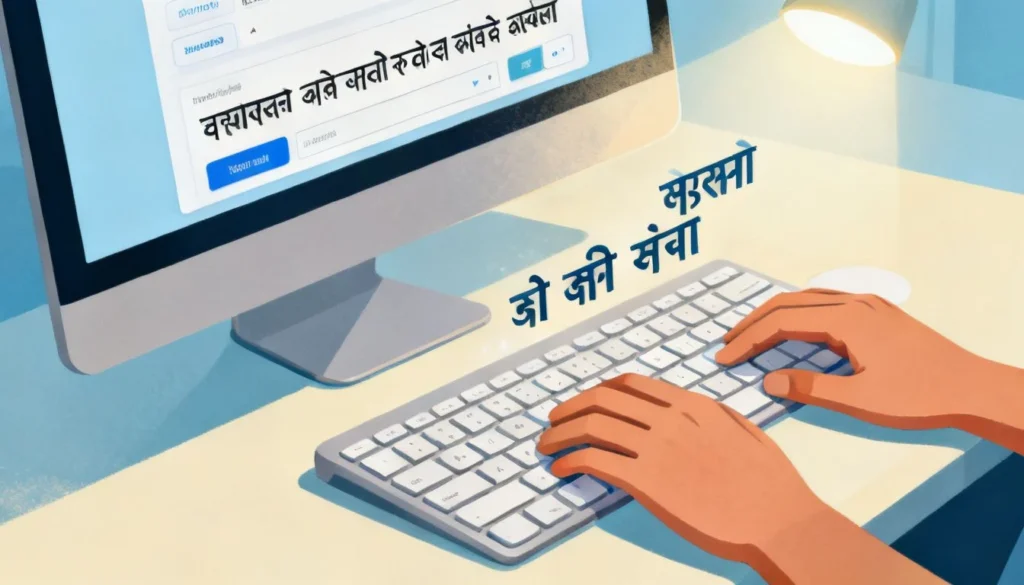
Transliteration changed everything. The concept is simple. You type the sound of the Marathi word using English letters, and the software predicts and converts it in real time. You do not need to know where “म” sits on a traditional Marathi keyboard. You just type “ma” and it becomes “म”. This lowered the barrier so dramatically that now, according to Google’s own data on Indian language internet users, Marathi is one of the top five Indian languages driving new internet adoption, with a significant portion of users relying on transliteration tools for text input.
Pro Tip: If you already type fast in English, you can reach about 70-80% of your normal English typing speed in Marathi transliteration within a single day of practice.
How English to Marathi Transliteration Actually Works
The technology behind this is called transliteration, and it is different from translation. Translation changes the meaning from one language to another. Transliteration changes the script while keeping the sound and meaning the same.
When you type “mala marathi yete” into a transliteration tool, it breaks down the string of letters phonetically. It recognizes “ma” as म, “la” as ल, and so on. The real magic happens with ambiguous sounds. Marathi has letters that English does not have distinct letters for, like the difference between the soft “ta” (त) in “tumhi” and the hard “Ta” (ट) in “tamatar”. Good transliteration engines use a built-in Marathi dictionary to predict which one you meant based on context.
Google’s transliteration, which powers Google Input Tools and Gboard, has been trained on massive amounts of Marathi text data. When you type “kasa”, it knows the most common word is “कसा” and offers that first. If you meant “कासा” (a less common word), it will show that as a second option. This predictive layer is what makes the experience feel almost telepathic once you get used to it.
The Difference Between Phonetic and Inscript Typing
This is worth understanding because you will see both options when setting up a Marathi keyboard.
| Feature | Phonetic (Transliteration) | Inscript Keyboard |
|---|---|---|
| Learning curve | Almost zero; type what you hear | Steep; requires memorizing key positions |
| Typing speed after mastery | Fast, but limited by predictive accuracy | Very fast; one keystroke per character |
| Best for | Casual users, bilingual users, beginners | Professional typists, data entry, government jobs |
| Mental load | Low; you think in English sounds | High; you must map Marathi letters to keys |
| Availability | Built into Gboard, iOS, Google Input Tools | Available on all major operating systems |
For most people reading this guide, phonetic transliteration is the clear winner. Inscript has its place, particularly if you are applying for a job that requires a Marathi typing certificate, where speed tests are done on the Inscript layout. But for daily communication and content creation, transliteration is the practical choice.
Setting Up English to Marathi Typing on Your Smartphone
Your phone probably already has everything you need. Both Android and iOS have built-in support for Marathi transliteration, and setting it up takes about two minutes.
On Android with Gboard
Gboard comes pre-installed on most Android phones. If you have a Samsung, you might need to download it from the Play Store first, as Samsung’s default keyboard does not always support Marathi transliteration as smoothly.
- Open any app where you can type, like Messages or WhatsApp
- Tap and hold the spacebar or tap the settings gear icon on the keyboard
- Select “Languages” and then “Add keyboard”
- Search for “Marathi” and select it
- You will see multiple options. Choose the one that says “Marathi (Transliteration)” or has a small Roman “abc” indicator next to the Devanagari letters
- Tap “Done”
Now, when you type, you will see a small globe icon on your keyboard. Tap it to switch between English and Marathi. When Marathi transliteration is active, type any Marathi word phonetically. The keyboard will show suggestions in Marathi script above the keys. Tap the correct word, and it inserts the Marathi text.
Pro Tip: If Gboard keeps auto-correcting your Marathi words to English, long-press the suggestion and drag it to the trash bin. This trains the keyboard to trust your Marathi input over time.
On iPhone and iPad
Apple added full Marathi transliteration support starting with iOS 13. The setup is similar but the naming is slightly different.
- Go to Settings, then General, then Keyboard, then Keyboards
- Tap “Add New Keyboard”
- Search for “Marathi”
- Select “Marathi” from the list. Apple does not label it “transliteration” separately; the default Marathi keyboard on iOS uses transliteration by default
- Also make sure “English” is in your keyboard list
Switch keyboards by tapping the globe icon. Start typing Marathi words in Roman letters and the iOS keyboard will convert them to Devanagari script in real time.
English to Marathi Typing on Windows and Mac
Desktop typing is where things get slightly more involved, but still very manageable. The tool you want on both platforms is Google Input Tools.
Windows Setup
Google Input Tools for Windows is a free download that integrates directly into your system. Once installed, it sits in your taskbar and works across all applications: Microsoft Word, Chrome, Notepad, email clients, everything.
- Search for “Google Input Tools download” and get it from the official Google website
- Install the application and restart your computer if prompted
- After installation, you will see a language icon in your system tray (bottom right corner of your screen)
- Click it and select “Marathi” from the list
- A small floating toolbar will appear. Make sure it says “Marathi (Phonetic)” or shows an “A” icon indicating transliteration mode
Now, open Word or any text editor. Type “namaskar” and watch it become “नमस्कार” as you type. If the conversion does not happen automatically, check that the Google Input Tools service is running. The default shortcut to toggle between English and Marathi is Windows key + Space, but this can vary depending on your Windows version.
Pro Tip: In Microsoft Word specifically, you can also use the built-in “Translate” feature under the Review tab, but this translates entire documents rather than providing real-time transliteration as you type. Stick with Google Input Tools for composing original Marathi content.
Mac Setup
Mac users have a slightly different path, but the result is the same.
- Go to System Settings, then Keyboard, then Input Sources
- Click the “+” button and search for “Marathi”
- Select “Marathi” and click “Add”
- Make sure “Show Input menu in menu bar” is checked
Apple’s built-in Marathi keyboard on macOS supports transliteration. You do not need to install Google Input Tools on a Mac unless you prefer its specific prediction engine. The native Mac transliteration is solid and works across all apps.
Switch between English and Marathi using the input menu in the menu bar or by pressing Control + Space (the default shortcut).
Common Problems and How to Fix Them Fast
No tool is perfect, and english to marathi typing comes with a few recurring headaches. Here are the most common ones and exactly what to do about them.
The Tool Keeps Breaking Compound Words
Marathi has many compound words, or “sandhi”, where two words join and the spelling changes. For example, “dev + alay” becomes “devalay” (देवालय), not “devaalay”. Transliteration tools sometimes break these apart incorrectly.
The fix is to type the full compound word without spaces, even if it looks wrong in Roman script at first. The engine will usually recognize it as a single unit. If it still fails, type the word in two parts, note the correct Marathi output for each part, and then manually combine them in the text editor.
Half-Letters (Jodakshar) Are Not Forming Correctly
Marathi script uses half-letters extensively. Words like “pustak” (पुस्तक) require the “s” to be a half-letter attached to “ta”. If your tool is typing “पुसतक” instead, you are probably not typing the correct Roman trigger.
The standard phonetic pattern is to type the consonant cluster without a vowel between them. For “pustak”, type “pustak” not “pusatak”. For “mitra”, type “mitra” not “mitara”. If the tool still struggles, try adding a “h” after the first consonant. Some transliteration systems use “h” as a halant (virama) indicator, so “push-tak” might force the half-letter.
Marathi Text Looks Broken in Some Apps
This is almost always a font issue, not a typing issue. If your Marathi text shows as boxes or garbled characters in a specific application, that application does not support Unicode Devanagari rendering. Most modern apps do, but older software, particularly legacy accounting programs or custom business software, may not.
The solution is to paste the text into a Unicode-compliant application first (like a browser or WordPad), confirm it renders correctly, and then copy it again. If the target app still fails, you may need to export your text as a PDF or image, which is not ideal but works in a pinch.
Voice Typing as a Faster Alternative
If you find transliteration too slow for long-form writing, voice typing in Marathi has become remarkably accurate. Both Google’s voice typing on Android and Apple’s Dictation on iOS support Marathi.
On Android with Gboard, tap the microphone icon, and when the voice input screen appears, check that it says “Marathi” at the bottom. If it says “English”, tap the language label to switch. Then just speak your sentence naturally. Google’s speech recognition for Marathi is trained on data from millions of Marathi speakers and handles different regional accents well, including Varhadi and Konkani-influenced Marathi.
On iPhone, the Dictation feature (microphone button on the keyboard) automatically detects Marathi speech if your phone’s language region is set to India and Marathi is one of your preferred languages.
Pro Tip: Voice typing is fastest for first drafts. Use it to get your thoughts down quickly, then switch to transliteration for editing and correcting small errors. This hybrid approach is what many Marathi content creators use to produce articles and scripts efficiently.
Key Takeaways
- English to marathi typing through transliteration lets you type Marathi words phonetically in Roman letters and see them convert to Devanagari script in real time
- Gboard on Android and the default iOS keyboard both have built-in Marathi transliteration support, no additional app required
- For desktop users, Google Input Tools provides seamless english to marathi typing across all Windows applications, while Mac has native support
- Common issues like broken compound words and half-letter formation can be fixed by adjusting how you type the Roman input, not by changing software
- Voice typing in Marathi has matured significantly and serves as a fast alternative for long-form content creation, with editing done via transliteration
Frequently Asked Questions
Q: Can I do english to marathi typing without installing any software?
A: Yes. You can use online tools like Google Input Tools Online (accessible through your browser) or websites like www.easymarathityping.com. Simply type in English letters in the provided text box, and the Marathi output appears instantly. You then copy and paste the Marathi text wherever you need it. No download or installation required.
Q: How do I type the Marathi letter “ळ” (La) using english to marathi typing?
A: Different transliteration tools handle this differently. In Google Input Tools and Gboard, typing “La” (with a capital L) produces “ळ”, while lowercase “la” produces “ल”. Some tools use “lla” for “ळ”. If neither works, try typing “La” as a standalone word first to see what the tool suggests, then adjust your pattern.
Q: Is english to marathi typing the same as using Google Translate?
A: No. Google Translate converts meaning from one language to another (translation). English to marathi typing via transliteration converts the script only. You are still writing in Marathi, just using English letters as a phonetic input method. The words you type are already Marathi words, not English words being translated.
Q: Why does my Marathi text sometimes show incorrect matras (vowel signs)?
A: Matra errors usually happen because of inconsistent typing patterns. For example, typing “mai” might produce “मै” when you wanted “माई”. To get the correct matra, be precise with your vowels. “Mai” (short sound) versus “maaee” (long sound). If the tool consistently misinterprets your input, try typing the word in smaller chunks and combining the correct outputs.
Q: Can I use english to marathi typing for official documents and government forms?
A: Yes, but with a caveat. The text produced by transliteration tools is standard Unicode Marathi text, which is technically valid for any official use. However, some government portals and older systems require text typed specifically using the Inscript keyboard layout for compatibility reasons. Check the specific requirements of the form or portal you are using. For printed documents, transliterated text is perfectly acceptable.
Q: How do I type Marathi numbers using the transliteration keyboard?
A: Marathi uses the same Devanagari numeral system as Hindi. On most transliteration keyboards, typing the English number (1, 2, 3) produces the Devanagari numeral (१, २, ३) when the Marathi keyboard is active. If you need English numerals while in Marathi mode, you may need to switch back to the English keyboard temporarily.
Q: What is the best free app for english to marathi typing on Android?
A: Gboard is the best free option for most users. It comes pre-installed on most Android phones, supports Marathi transliteration natively, and receives regular updates from Google. Other good free alternatives include Microsoft SwiftKey, which also supports Marathi transliteration, and Indic Keyboard, an open-source option popular among users who prefer more customization.
Q: Does english to marathi typing work on Chromebooks?
A: Yes. Chromebooks use the same Google Input Tools system. Go to Settings, then Advanced, then Languages and Inputs, then Input Method. Add “Marathi (Phonetic)” from the list. Once added, you can switch between English and Marathi using the input method icon on the shelf or by pressing Ctrl + Space.
References & Further Reading
- Google Input Tools Official Download Page , The official source for the Windows desktop application and the Chrome extension
- Gboard Help: Type in Another Language , Google’s official documentation on adding and using Marathi and other language keyboards on Android
- Apple Support: Type in Another Language on iPhone , Apple’s guide to adding Marathi and other language keyboards on iOS devices
- Microsoft Language Interface Packs for Windows , For users who need full Marathi language support on Windows beyond just typing
—
About This Article: This guide was written based on hands-on testing of english to marathi typing tools across Android, iOS, Windows, and Mac platforms. The setup instructions reflect the current interfaces as of the latest operating system versions. Transliteration behavior described matches Google Input Tools and Gboard, which together cover the vast majority of users. If you encounter a tool or platform not covered here, the phonetic principles explained in the transliteration section will still apply.