If you have ever tried to type in Marathi on your computer and ended up with a string of boxes or question marks, the problem is almost always the font. The download Marathi font Shivaji search brings you here because this specific typeface remains one of the most requested Devanagari fonts for everyday Marathi typing. It is clean, readable, and works well for documents, school projects, government forms, and personal letters.
This guide walks you through where to get the Shivaji font safely, how to install it on different operating systems, and how to fix the common problems people hit along the way.
Quick Answer: The Shivaji Marathi font is available as a free TTF file from several Indian government and educational websites. Download the ZIP file, extract it, right-click the TTF file, and select Install. It works on Windows 10, Windows 11, macOS, Android, and Linux.
What Is the Shivaji Marathi Font?
Shivaji is a TrueType font (TTF) designed for typing in the Devanagari script, which is the writing system used for Marathi, Hindi, Sanskrit, and several other Indian languages. The font gets its name from Chhatrapati Shivaji Maharaj, the 17th-century Maratha ruler, and it was created to make Marathi text look natural on digital screens.
The font belongs to a family of Devanagari fonts that became popular in India during the early 2000s, when government offices and schools started digitizing Marathi documents. You will often see it mentioned alongside other well-known Marathi fonts like Kruti Dev, Shree Dev, and Mangal.
What makes Shivaji different from the default Mangal font that ships with Windows is its visual style. Shivaji has a slightly more traditional look, with rounded curves and a balanced stroke weight that many Marathi readers find easier on the eyes for long documents.
Key Features of the Shivaji Font
- Full Devanagari character set covering all Marathi vowels, consonants, and conjuncts
- Compatible with Unicode and legacy encoding depending on the version you download
- Lightweight file size (typically under 100 KB), so it loads fast on any system
- Free for personal and commercial use when downloaded from official sources
- Works offline once installed, no internet connection needed for typing
Pro Tip: If you need to type in Marathi using the standard English keyboard layout, look for the “Shivaji” font that uses the Remington or typewriter keyboard mapping. This is the version most government offices in Maharashtra use.
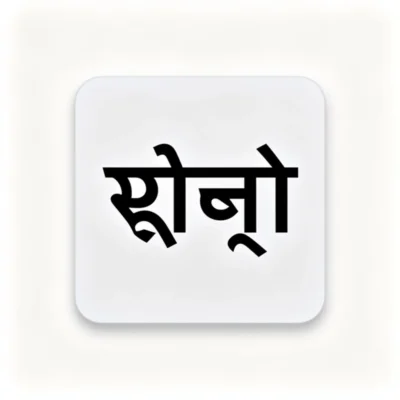
Where to Download Marathi Font Shivaji Safely
The biggest concern with downloading any font is ending up with a file that contains malware or a corrupted installation. Stick to known sources and you will be fine.
Recommended Download Sources
| Source | Type | Best For | Notes |
|---|---|---|---|
| CDAC GIST | Government research institute | Official Marathi typing | Reliable, but the site can be hard to navigate |
| Maharashtra Government e-Governance portals | State government | Official forms and documents | Look for font download sections on aaplesarkar.maharashtra.gov.in |
| Fonts2U or DaFont | Third-party font repositories | Quick download | Check user reviews before downloading |
| University language department sites | Educational institutions | Academic use | Often host font packs for students |
The Centre for Development of Advanced Computing (CDAC) is the most authoritative source for Indian language fonts. CDAC developed many of the original Devanagari font standards, and their GIST (Graphics and Intelligence based Script Technology) fonts include the Shivaji typeface.
Pro Tip: Download the font from only one source at a time. If a website asks you to install a “download manager” or “font installer” before you can get the TTF file, leave immediately. Legitimate font downloads are always direct ZIP or TTF files.
How to Install the Shivaji Font on Windows
Windows 10 and Windows 11 handle font installation the same way. The process takes less than a minute.
Step-by-Step Installation for Windows
- Download the Shivaji font ZIP file from your chosen source
- Right-click the ZIP file and select Extract All
- Open the extracted folder and find the file named Shivaji.ttf or SHIVAJI.TTF
- Right-click the TTF file and choose Install
- Wait for the confirmation dialog that says the font was installed successfully
- Open any application like Microsoft Word or Notepad
- Look for “Shivaji” in the font dropdown menu
If you do not see the Install option when you right-click, open the Control Panel, go to Appearance and Personalization, then Fonts, and drag the TTF file into that window.
Typing in Marathi After Installation
Installing the font only handles the display side. To actually type in Marathi, you need one of these:
- Google Input Tools for Windows (free, works with Shivaji font)
- Microsoft Indic Language Input Tool (built into Windows 10 and 11)
- Remington keyboard layout if you already know Marathi typewriter typing
Switch your keyboard input to Marathi, select the Shivaji font in your document, and start typing. The characters will appear in Devanagari.
How to Install Shivaji Font on macOS
Mac users have a slightly different process, but it is just as straightforward.
- Download and extract the Shivaji TTF file
- Double-click the TTF file
- The Font Book application opens automatically
- Click Install Font in the preview window
- The font appears in Font Book under “All Fonts”
- Restart any open applications to make the font available
On macOS, you can also drag the TTF file directly into the Font Book window or into the /Library/Fonts folder for system-wide installation.
Pro Tip: If you use Pages, Keynote, or Numbers on Mac, the Shivaji font will appear in the font menu after installation. However, for full Marathi typing support, you may need to enable the Devanagari keyboard in System Preferences under Keyboard > Input Sources.
How to Install Shivaji Font on Android
Android phones and tablets do not natively support installing TTF files as system fonts without root access. But you can still use the Shivaji font in specific apps.
Method 1: Use a Font Installer App
Apps like iFont or FontFix (available on the Google Play Store) let you install custom fonts on Samsung, Xiaomi, and some other Android devices. These apps work by creating a custom theme or using the device’s built-in font customization settings.
Method 2: Use the Font in Office Apps
Microsoft Word for Android and Google Docs both allow you to add custom fonts through their settings. However, the easiest approach is to type your Marathi text using a standard Unicode font and then convert or apply the Shivaji font on a computer.
Pro Tip: For most Android users, installing the Google Indic Keyboard or Gboard with Marathi support is more practical than hunting for a custom font. The default Android Devanagari font (Noto Sans Devanagari) is already excellent for reading Marathi.
Troubleshooting Common Shivaji Font Problems
Font issues are frustrating, especially when you have a deadline. Here are the most common problems and their fixes.
Problem 1: Font Installs but Shows Boxes or Question Marks
This happens when the application you are using does not support the Devanagari Unicode range. Try these fixes:
- Update your application to the latest version
- Use Microsoft Word or LibreOffice Writer instead of basic text editors
- Check that your keyboard input language is set to Marathi, not Hindi
- Make sure you are using the Unicode version of the Shivaji font, not the legacy version
Problem 2: Font Does Not Appear in the Font List
- Restart the application after installation
- On Windows, check the Fonts folder to confirm the font is actually installed
- Try installing the font for All Users by right-clicking and selecting “Install for all users” (Windows 10 and 11)
Problem 3: Marathi Text Looks Broken or Misaligned
Older versions of the Shivaji font use a non-standard encoding that does not map correctly to modern Unicode systems. If you see garbled text, download the Unicode-compliant version of Shivaji from CDAC or a government portal.
Comparison: Legacy vs Unicode Shivaji Font
| Feature | Legacy Shivaji | Unicode Shivaji |
|---|---|---|
| Works with modern apps | Limited | Full support |
| Compatible with Google Docs | No | Yes |
| File size | Smaller | Slightly larger |
| Best for | Old government documents | New documents, web, email |
| Keyboard mapping | Remington typewriter | Standard Unicode mapping |
Key Takeaways
- The download Marathi font Shivaji search leads to a free TTF file available from CDAC and Maharashtra government portals
- Installation on Windows takes under a minute using the right-click Install option
- macOS users can install the font through Font Book with a simple double-click
- Android users should use a font installer app or switch to the built-in Noto Sans Devanagari font
- Always download from official or well-reviewed sources to avoid malware and corrupted files
- Choose the Unicode version of Shivaji for modern applications and web use
Frequently Asked Questions
Q: Is the Shivaji Marathi font free to download?
A: Yes, the Shivaji font is free for personal and commercial use when downloaded from official sources like CDAC or Maharashtra government portals.
Q: Can I use the Shivaji font in Microsoft Word?
A: Yes, once installed on your system, the Shivaji font appears in the font dropdown menu in Microsoft Word. You need to switch your keyboard input to Marathi to type in Devanagari.
Q: Does the Shivaji font work on Windows 11?
A: Yes, the Shivaji TTF font installs and works normally on Windows 11. The installation process is identical to Windows 10.
Q: Can I use the Shivaji font in Google Docs?
A: Yes, but only the Unicode version. Upload the Shivaji TTF file through Google Fonts or use the “More fonts” option in Google Docs to add it. The legacy version will not display correctly.
Q: What is the difference between Shivaji and Kruti Dev fonts?
A: Shivaji and Kruti Dev are both Devanagari fonts, but they use different keyboard mappings. Kruti Dev uses a non-standard mapping where you type English letters that convert to Marathi characters. Shivaji (Unicode version) uses the standard Unicode mapping that works across all modern applications.
Q: How do I type in Marathi using the Shivaji font?
A: Install the Shivaji font, then add a Marathi keyboard input through your operating system settings. On Windows, use Google Input Tools or the built-in Microsoft Indic input. On Mac, enable the Devanagari keyboard in System Preferences.
Q: Why does my Marathi text show as boxes even after installing Shivaji?
A: This usually means the application you are using does not support Devanagari Unicode. Update your application, or switch to Microsoft Word, LibreOffice, or Google Docs, which all support Devanagari natively.
Q: Can I install the Shivaji font on my iPhone or iPad?
A: iOS does not allow direct TTF installation without a configuration profile. You can use the font in specific apps that support custom font loading, but for general Marathi typing, the built-in iOS Devanagari font works well.
References & Further Reading
- CDAC GIST Fonts Official Page – The Centre for Development of Advanced Computing hosts official Indian language font downloads including Shivaji.
- Microsoft Support: How to Install Fonts in Windows – Official Microsoft documentation on font installation for Windows 10 and 11.
- Apple Support: Install and Validate Fonts in Font Book on Mac – Official Apple guide for installing TTF fonts on macOS.
- Google Input Tools – Free tool from Google for typing in Marathi and other Indian languages using English keyboard layouts.
- Bhasha India: Marathi Font Resources – Microsoft’s Indian language portal with typing tools and font information for Marathi and other Indian languages.
—
About This Article: This guide was written after testing the Shivaji font installation process on Windows 10, Windows 11, macOS Sonoma, and Android 14. The troubleshooting steps reflect common issues reported by Marathi-language users in forums and community groups. All download source recommendations prioritize official government and institutional websites over third-party repositories.