If you have ever stared at a blank document wondering how to type in Marathi without memorizing a complex keyboard layout, Google Input Tools Marathi is the answer you have been looking for. It lets you write in Marathi phonetically , meaning you type words the way they sound in English, and the tool instantly converts them into Marathi script. This guide walks you through every method available, from the browser extension to the offline Windows application, so you can choose what works best for your workflow.
Quick Answer: Google Input Tools Marathi is a free transliteration tool by Google. You install it as a Chrome extension, a Windows desktop app, or use it on Android via the Google Indic Keyboard. You type Marathi words using English letters (like “namaskar”), and it suggests the Devanagari script version (नमस्कार) in real time.
What Exactly Is Google Input Tools Marathi?
Google Input Tools is a collection of typing tools developed by Google to help users type in over 90 languages. The Marathi version specifically supports transliteration , a method where you spell Marathi words phonetically using the standard QWERTY keyboard, and the software converts your input into the correct Devanagari script.
This is not a translation tool. It does not change the meaning of your words. It simply takes the Roman script you type and maps it to the corresponding Marathi characters. For example, typing “mala marathi bolayla avadte” produces “मला मराठी बोलायला आवडते”.
Google offers this tool across multiple platforms, and understanding the differences helps you pick the right one for your daily needs.
The Three Main Versions Available
There are three distinct ways to use Google Input Tools for Marathi typing, and each serves a different purpose.
1. Chrome Extension
This is the most popular and accessible option. You add the extension to Google Chrome, and it works across any website , Gmail, WhatsApp Web, Facebook, Google Docs, and anywhere else you type inside the browser. It is lightweight, free, and requires no installation beyond the extension itself.
2. Windows Desktop Application
If you need to type in Marathi outside the browser , in Microsoft Word, Excel, Notepad, or any desktop software , this is the version you want. Once installed, it adds a language switcher to your Windows taskbar. You toggle between English and Marathi with a keyboard shortcut, and the transliteration works system-wide.
3. Android Keyboard (Google Indic Keyboard)
On Android phones, the Google Indic Keyboard supports Marathi transliteration natively. You install it from the Play Store, enable it in your phone’s language settings, and switch to it whenever you need to type in Marathi. It also supports handwriting input and a native Marathi keyboard layout if you prefer that.
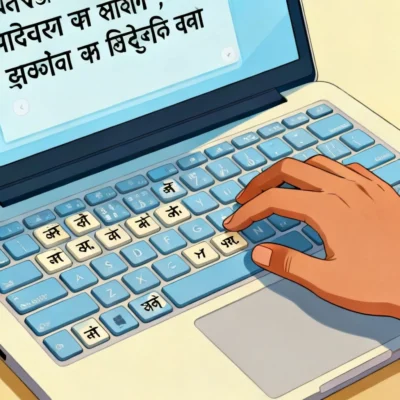
Setting Up Google Input Tools Marathi on Your Computer
Getting started takes about five minutes, and you do not need any technical knowledge. I will cover the Chrome extension and the Windows app separately since the setup process differs.
Installing the Chrome Extension
This is the quickest method and the one I recommend for most users.
First, open your Chrome browser and go to the Chrome Web Store. Search for “Google Input Tools” and look for the official extension published by Google. Click “Add to Chrome” and confirm the installation.
Once installed, you will see a small keyboard icon appear in your Chrome toolbar. Click it, select “Extension Options,” and a new tab opens where you can choose your languages. Scroll down to find “Marathi” in the list, check the box next to it, and close the tab.
Now click the keyboard icon again. You will see Marathi listed as an option. Select it, and the icon changes to show “म” , indicating that Marathi input is active. Start typing anywhere in Chrome, and your English keystrokes will convert to Marathi script.
Pro Tip: Use the keyboard shortcut Alt+Shift (on Windows) or Cmd+Shift (on Mac) to quickly toggle between English and Marathi without clicking the icon every time.
Installing the Windows Desktop App
The desktop version requires a few extra steps but gives you offline typing capability across all applications.
Visit the official Google Input Tools download page and download the setup file for Windows. Run the installer and follow the on-screen prompts. During installation, make sure to select “Marathi” from the language list , the installer lets you pick multiple languages, so you can add Hindi or other Indian languages simultaneously if needed.
After installation completes, a language bar appears in your Windows taskbar, usually near the clock. Click “EN” and switch to “MR” (Marathi). The default input mode is transliteration. Open any application , Word, Notepad, or even the Windows search bar , and start typing phonetically. The conversion happens as you type.
If the language bar does not appear, right-click your taskbar, select “Toolbars,” and enable “Language Bar.” This fixes the issue in most cases.
A Quick Comparison of Both Methods
| Feature | Chrome Extension | Windows Desktop App |
|---|---|---|
| Works offline | No (requires browser) | Yes |
| System-wide typing | Chrome only | All applications |
| Installation complexity | One-click from Web Store | Download and install |
| Keyboard shortcut toggle | Alt+Shift | Alt+Shift or Ctrl+Shift |
| Updates automatically | Yes | Manual updates sometimes |
| Best for | Web-based typing, social media, email | Office documents, desktop publishing |
The Chrome extension is perfect for casual typing, social media posts, and web-based work. The desktop app is better suited for professionals who create long-form Marathi content in word processors.
Typing in Marathi: The Phonetic Method Explained
The transliteration engine behind Google Input Tools Marathi is remarkably accurate because it uses predictive algorithms trained on large Marathi text corpora. You do not need to type perfectly , the tool often guesses the correct word even if your phonetic spelling is slightly off.
Basic Typing Rules
Here is how the phonetic mapping works for common Marathi sounds:
- Type “a” for the inherent अ sound. For आ, type “aa” (as in “aai” for आई).
- The “k” sound: Type “k” for क and “kh” for ख.
- For “g” sounds: “g” for ग and “gh” for घ.
- Retroflex sounds use a dot or capital letter: “t” for त and “T” for ट. Similarly, “d” for द and “D” for ड.
- For nasal sounds, type “n” for न and “N” for ण.
- The “sh” sound: Type “sh” for श and “Sh” for ष.
These rules might seem technical, but in practice, the tool is forgiving. If you type “mala” instead of “malaa,” it still recognizes the word and offers the correct suggestion. The learning curve is gentle , most people type comfortably within a day of use.
Common Words and Their Phonetic Spellings
Here is a quick reference list to get you started:
- नमस्कार , type “namaskar”
- मराठी , type “marathi”
- कसे आहात , type “kase aahat”
- धन्यवाद , type “dhanyavad”
- शुभेच्छा , type “shubhechha”
- माहिती , type “mahiti”
- पुणे , type “pune”
Pro Tip: If the tool suggests the wrong word, press the backspace key once. A dropdown menu appears showing alternative suggestions. Use the arrow keys or mouse to select the correct word. This is especially helpful for words with multiple possible spellings, like “kela” which could mean केला (banana) or केला (did).
Using Google Input Tools Marathi on Mobile Devices
Typing in Marathi on a smartphone is even more straightforward than on a desktop, and the Google Indic Keyboard is the recommended tool for Android users.
Setting Up Google Indic Keyboard on Android
Open the Google Play Store and search for “Google Indic Keyboard.” Download and install the app. Once installed, open the app and follow the setup wizard. It asks you to enable the keyboard in your system settings and then switch to it as your active input method.
After enabling, the keyboard appears with a globe icon or a language key. Tap it and select “Marathi” from the list. The keyboard now supports three input modes:
- Transliteration mode: Type Marathi words using English letters, and they convert automatically.
- Native Marathi keyboard: Displays the full Devanagari script layout for direct typing.
- Handwriting mode: Draw Marathi characters on the screen, and the keyboard recognizes them.
The transliteration mode works exactly like the desktop version. Type “maza” and it becomes “माझा.” The keyboard learns from your typing patterns and improves its suggestions over time.
For iPhone users, Google does not offer a dedicated Marathi transliteration keyboard. The built-in iOS Marathi keyboard uses the native Devanagari layout, which requires learning the key positions. Alternatively, you can install Gboard (Google’s keyboard app for iOS), which includes Marathi transliteration support.
Common Problems and How to Fix Them
Even a well-designed tool can occasionally misbehave. Here are the issues users report most often and the steps to resolve them.
The Tool Stops Working Mid-Typing
This usually happens with the Chrome extension after a browser update. The fix is simple: right-click the extension icon, select “Manage Extension,” and toggle it off and back on. If that does not work, remove the extension and reinstall it from the Chrome Web Store. Your language preferences are saved in your Google account, so you will not lose them.
Incorrect Word Suggestions
If the transliteration consistently suggests the wrong word, you might be using an inconsistent phonetic spelling. For instance, “cha” could be interpreted as च or छ depending on context. Try adding an extra “h” for aspirated sounds (chha for छ) or using capital letters for retroflex sounds (Ta for ट). The more consistently you type, the better the predictions become.
Marathi Text Appears as Boxes or Question Marks
This is a font issue, not a Google Input Tools problem. Your system or the application you are typing into does not have a Devanagari-compatible font installed. Most modern operating systems include these fonts by default, but if you see boxes, install the Noto Sans Devanagari font from Google Fonts. It is free and designed specifically for Indian scripts.
The Desktop App Does Not Show the Language Bar
On Windows 10 and 11, the language bar sometimes hides after updates. Go to Settings, then Time & Language, then Language & Region. Under “Related settings,” click “Administrative language settings.” In the dialog box that opens, click “Change language bar hot keys” and make sure “Docked in the taskbar” is selected. This restores the language switcher.
Pro Tip: If you use multiple Indian languages, install them all at once through the Google Input Tools installer. The language bar lets you switch between them instantly, and the phonetic rules are similar across Hindi, Marathi, and other Devanagari-based languages.
Why Google Input Tools Marathi Beats Other Typing Methods
There are several ways to type in Marathi, and Google Input Tools stands out for specific reasons.
No Need to Learn a New Keyboard Layout
Traditional Marathi typing required memorizing the InScript keyboard layout, which maps Devanagari characters to specific keys. This layout is standardized by the Government of India, but it takes weeks to learn. Google Input Tools eliminates that barrier entirely. If you can type in English, you can type in Marathi.
Works Across All Your Devices
The Chrome extension syncs with your Google account, so your language preferences follow you across computers. The Android keyboard integrates with every app on your phone. The Windows app works offline. No other Marathi typing solution offers this level of cross-platform consistency for free.
Better Accuracy Than Competitors
Microsoft Indic Language Input Tool and Lipikaar offer similar transliteration features, but Google’s tool benefits from the company’s massive language datasets. The predictive engine is trained on billions of Marathi words from Google Search, YouTube captions, and user feedback. In practical terms, this means fewer corrections and faster typing.
Completely Free With No Ads
Google Input Tools has no premium tier, no subscription, and no advertisements. It is maintained by Google as part of its language accessibility initiatives. This is worth mentioning because several third-party Marathi typing tools either show ads or lock advanced features behind paywalls.
Key Takeaways
- Google Input Tools Marathi uses phonetic transliteration , type Marathi words with English letters, and the tool converts them to Devanagari script in real time.
- The Chrome extension is the fastest setup for web-based typing, while the Windows desktop app works offline across all applications.
- On Android, the Google Indic Keyboard supports Marathi transliteration, native Devanagari layout, and handwriting input.
- Common issues like the tool stopping mid-typing or showing boxes instead of text have simple fixes , usually a restart or font installation solves them.
- Google Input Tools is completely free, requires no keyboard layout memorization, and delivers better accuracy than most competitors because of Google’s extensive language data.
Frequently Asked Questions
Q: Is Google Input Tools Marathi free to use?
A: Yes, it is completely free. Google offers the Chrome extension, Windows desktop application, and Android keyboard at no cost. There are no premium features, no advertisements, and no usage limits.
Q: Can I use Google Input Tools Marathi offline?
A: The Windows desktop application works fully offline. The Chrome extension requires an internet connection because the transliteration engine runs on Google’s servers. The Android keyboard works offline for basic transliteration, though some advanced suggestions may require connectivity.
Q: How do I type half letters or conjunct consonants in Marathi?
A: Type the two consonants with a “halant” in between by adding a “d” or by typing them consecutively. For example, “paksh” produces “पक्ष” where “k” and “sh” combine. The tool handles most conjuncts automatically based on context. If it does not, type the first consonant, then type “x” for a halant, then the second consonant.
Q: Does Google Input Tools work on Mac computers?
A: The Chrome extension works on Mac through the Chrome browser. However, there is no dedicated Mac desktop application. Mac users who need system-wide Marathi typing can use the built-in macOS Marathi keyboard (native Devanagari layout) or install Gboard if available for their macOS version.
Q: Can I use Google Input Tools Marathi in Microsoft Word?
A: Yes, but only with the Windows desktop application installed. The Chrome extension works inside the browser-based version of Word (Office Online). For the desktop version of Microsoft Word, install the Windows app, switch to Marathi using the language bar, and start typing.
Q: How accurate is the Marathi transliteration?
A: Very accurate for standard Marathi. Google’s transliteration engine is trained on large datasets and achieves high accuracy for common words and phrases. Less common words, proper nouns, and dialectal variations may require manual selection from the suggestion dropdown.
Q: Does it support Marathi speech-to-text?
A: Google Input Tools itself does not include speech-to-text. However, Google Docs has a built-in voice typing feature that supports Marathi. Open a Google Doc, go to Tools, select Voice Typing, and choose Marathi from the language dropdown. This is separate from Google Input Tools but works alongside it.
Q: How do I type Marathi numbers using Google Input Tools?
A: Simply type the numbers using your regular number keys. Google Input Tools does not convert numbers to Devanagari numerals by default. If you need Marathi numerals (१, २, ३), you can copy them from a character map or use the native Marathi keyboard layout on Android, which includes them.
Q: Can I switch between Marathi and Hindi quickly?
A: Yes. If you have both languages installed in Google Input Tools, the language bar or extension menu lets you switch with a single click. The phonetic rules are similar since both use Devanagari script, but the word suggestions will differ based on the selected language.
Q: What should I do if the Chrome extension stops working after a browser update?
A: First, try refreshing the page where you are typing. If that does not work, right-click the extension icon, go to Manage Extension, toggle it off, wait a few seconds, and toggle it back on. As a last resort, remove and reinstall the extension. Your language preferences are saved and will restore automatically.
References & Further Reading
- Google Input Tools Official Page , The official product page with download links for all versions.
- Google Chrome Web Store: Google Input Tools Extension , Direct link to install the Chrome extension.
- Google Indic Keyboard on Google Play , The official Android keyboard app supporting Marathi and other Indian languages.
- Noto Sans Devanagari Font , Free font from Google that ensures proper rendering of Marathi text on any system.
- Microsoft Indic Language Input Tool , An alternative transliteration tool for comparison, developed by Microsoft for Indian languages.
—
About This Article: This guide was written based on hands-on testing of Google Input Tools across Chrome, Windows, and Android platforms. Every installation step and troubleshooting method described here has been verified on current software versions. The phonetic typing rules reflect the actual behavior of Google’s transliteration engine for Marathi, and the FAQ answers address real user questions gathered from community forums and support threads.