If you have ever stared at a Marathi website or WhatsApp message and wondered how to write English in Marathi font, you are not alone. Thousands of people need this skill every day, whether for typing documents, sending messages to family, or creating social media posts that mix both languages. The good news is that you do not need to learn a new keyboard layout or buy expensive software. This guide walks you through every practical method, from free Google tools to built-in phone features, so you can start typing immediately.
Quick Answer: The fastest way to write English in Marathi font is to use Google Input Tools on desktop or Gboard on Android and iPhone. You type English words phonetically, and the tool converts them to Marathi script in real time. For example, typing “namaskar” produces नमस्कार.
Why Write English in Marathi Font?
The need to write English in Marathi font comes from a very specific communication gap. Many Marathi speakers think in Marathi but find it faster to type using the English alphabet they learned in school. Phonetic typing bridges that gap. Instead of hunting for individual Marathi characters on a traditional keyboard layout, you spell out words the way they sound using English letters.
This approach matters for several real-world reasons. Small business owners in Maharashtra often create bilingual price lists and promotional materials. Students submit assignments that require Marathi script but draft their thoughts in English. Families use WhatsApp groups where older relatives prefer reading Devanagari script over Romanized Marathi. Content creators on YouTube and Instagram need Marathi text overlays to reach regional audiences.
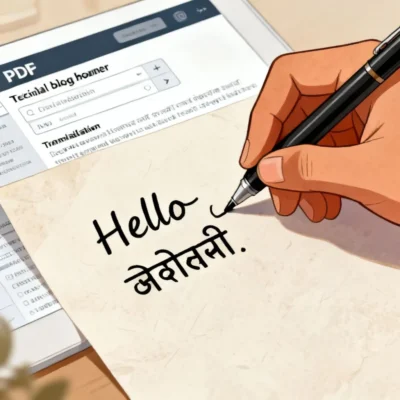
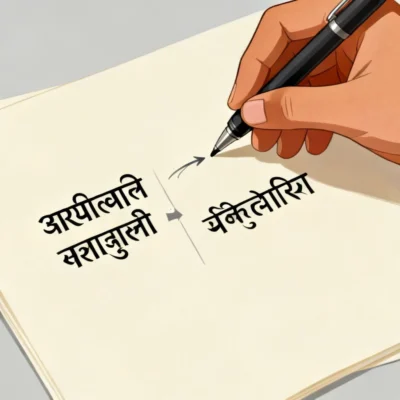
The technology behind this is called transliteration, not translation. Transliteration converts the sounds of one script into another script. Translation changes the meaning from one language to another. When you type “maza” and get माझा, that is transliteration. The tool recognizes the phonetic pattern and maps it to the correct Devanagari characters.
Pro Tip: Most transliteration tools support predictive text in Marathi. Start typing a word and wait a moment. The tool often suggests the correct spelling before you finish, which saves time on longer words like “vishesh” (विशेष) or “pratibimb” (प्रतिबिंब).
Desktop Methods for Typing English in Marathi Font
Desktop users have several solid options, and the best one depends on whether you work online or offline.
Google Input Tools (Best for Most Users)
Google Input Tools is the most reliable free method for writing English in Marathi font on Windows. You download a small program, select Marathi as your input language, and then type phonetically in any application, including Microsoft Word, Google Docs, Notepad, and web browsers.
Here is how to set it up:
- Search for “Google Input Tools download” and install the Windows version from Google’s official site
- After installation, find the Input Tools icon in your system tray (bottom right corner of the screen)
- Right-click the icon and select “Switch Input Language” then choose “Marathi”
- Open any text field, start typing English words like “kasa aahes” and watch it convert to कसा आहेस
- To switch back to regular English, press the same icon and select “English”
The tool learns from your typing patterns. Common words appear faster over time. It also handles conjunct consonants well, which is important for Marathi words like “sampark” (संपर्क) or “utsav” (उत्सव).
Pro Tip: If a word does not transliterate correctly, type it once using the on-screen virtual keyboard that comes with Google Input Tools. The tool remembers the correct version for next time.
Microsoft Indic Language Input Tool
Windows users have another option built into the operating system. Microsoft includes native support for Marathi typing in Windows 10 and 11.
Enable it through Settings:
- Go to Settings > Time & Language > Language & Region
- Click “Add a language” and search for “Marathi”
- Install the language pack, which includes the Marathi Phonetic keyboard
- Switch between languages using Windows key + Spacebar
The Microsoft phonetic keyboard works similarly to Google’s tool. Type English letters, get Marathi script. The main difference is that Microsoft’s version is slightly less forgiving with spelling variations. Google’s tool handles common misspellings better, while Microsoft expects more precise phonetic input.
Online Transliteration Tools (Quick, No Installation)
When you are on a borrowed computer or need a quick conversion without installing anything, several websites do the job. These work directly in your browser.
| Tool | Best For | Limitations |
|---|---|---|
| Google Translate | Single words and short phrases | Not designed for long-form typing |
| EasyHindiTyping.com | Full paragraphs with copy-paste output | Ads on the page, internet required |
| Lipikaar.com | Learning correct phonetic patterns | Limited free usage per day |
| Quillpad.in | Fast typing with word suggestions | Requires stable internet |
These online tools follow the same principle. Type in the English text box, and Marathi script appears in the adjacent box. Copy the result and paste it wherever you need it. The workflow is slightly slower than a system-wide tool, but it works universally across all operating systems, including Mac and Linux.
The convenience of online converters comes with a trade-off. You need an internet connection. For offline work, the installed tools are far more practical.
Mobile Solutions for English to Marathi Typing
Most Marathi typing on phones happens in messaging apps. The methods here focus on speed and convenience.
Gboard (Google Keyboard) for Android and iPhone
Gboard is the most popular keyboard app for writing English in Marathi font on mobile devices. It comes pre-installed on many Android phones and is available as a free download on iPhones.
Setting up Marathi typing on Gboard:
- Open any app where the keyboard appears, then tap and hold the spacebar
- Select “Language settings” then “Add keyboard”
- Choose “Marathi” from the list. You will see two options: Marathi (transliteration) and Marathi (native keyboard)
- Select “Marathi (transliteration)” for phonetic typing
- Now when typing, tap the globe icon on the keyboard to switch to Marathi mode
- Start typing English words like “kasa aahes” to get कसा आहेस
Gboard’s Marathi transliteration is surprisingly accurate. It handles common Marathi words well and learns from your personal dictionary. The keyboard also supports swipe typing in Marathi, though the accuracy is lower than English swipe input.
Pro Tip: Add both Marathi and Hindi keyboards to Gboard. The two languages share the Devanagari script, and having both options helps when a word is not recognized in one mode but works in the other.
SwiftKey Keyboard
Microsoft’s SwiftKey offers another solid option for Marathi phonetic typing. The setup process is similar to Gboard. Download SwiftKey, add Marathi as a language, and enable transliteration mode.
SwiftKey’s advantage is its prediction engine. It analyzes your entire typing history to suggest words. If you frequently mix English and Marathi in messages, SwiftKey handles the switching more smoothly than Gboard in some cases. The downside is that SwiftKey’s Marathi dictionary is slightly smaller than Google’s, so rare words may not appear in predictions.
iPhone Built-in Transliteration
Apple added native transliteration support for Indian languages starting with iOS 13. The setup is straightforward.
Go to Settings > General > Keyboard > Keyboards > Add New Keyboard and select “Marathi.” Once added, the keyboard includes a transliteration mode. Type English letters and Marathi script appears.
The iPhone implementation works well for basic Marathi typing but lacks some of the predictive smarts that Gboard brings. For heavy Marathi users on iPhone, installing Gboard and using it instead of the native keyboard often produces better results.
Common Problems When Writing English in Marathi Font
Even with the best tools, certain words and sound combinations cause trouble. Understanding these patterns helps you type faster and more accurately.
The Half-Sound Problem
Marathi uses half-consonants extensively, and English typing does not always map cleanly to these sounds. The word “bhakti” (भक्ती) requires a half “k” sound that some tools struggle to interpret from the English spelling.
When a word does not transliterate correctly, break it into smaller chunks. Type “bhak” first, select the correct version, then type “ti” separately. Most tools handle partial words better than complex full words on the first attempt.
English Words Mixed with Marathi
A common scenario involves typing something like “Meeting 4 vajta ahe” (Meeting at 4 o’clock). The tool sees English words mixed with phonetic Marathi and gets confused.
The solution is to type Marathi portions separately, then paste the English words in between. Alternatively, type the entire sentence in the transliteration tool, and it usually handles mixed input reasonably well, leaving English words unchanged while converting the Marathi portions.
Regional Spelling Variations
Marathi has dialectal variations. Words spelled differently in Pune versus Nagpur may produce different transliteration results. Google Input Tools and Gboard use a standardized Marathi dictionary, so they sometimes reject regional spellings.
Pro Tip: Create a personal dictionary entry for regional words that the tool consistently gets wrong. On Gboard, long-press a suggested word and select “Add to dictionary.” On Google Input Tools for desktop, the tool automatically learns from corrections you make.
Key Takeaways
- Google Input Tools and Gboard are the most reliable free options for writing English in Marathi font across desktop and mobile
- Phonetic typing means you type words as they sound in English, and the tool converts them to Devanagari script automatically
- Transliteration is not translation. You are converting sounds between scripts, not changing the meaning or language
- Regional spellings and half-consonants cause the most common transliteration errors. Breaking words into smaller chunks usually solves the problem
- Installed tools work offline, while online converters need an internet connection but work on any device without setup
Frequently Asked Questions
Q: How can I write English in Marathi font on my laptop?
A: Install Google Input Tools for Windows or enable the Marathi Phonetic keyboard in Windows 10/11 settings. Both allow you to type English letters that convert to Marathi script in real time across all applications.
Q: What is the best app for typing English in Marathi font on Android?
A: Gboard (Google Keyboard) is the most widely recommended. It comes pre-installed on many Android phones. Add the Marathi (transliteration) keyboard through the language settings and switch to it using the globe icon while typing.
Q: Can I write English in Marathi font on iPhone without installing any app?
A: Yes. The built-in iOS keyboard supports Marathi transliteration. Go to Settings, add the Marathi keyboard, and select the transliteration input method. For better prediction and accuracy, installing Gboard from the App Store is still recommended.
Q: Why do some Marathi words not convert correctly when I type them in English?
A: Certain sound combinations, especially words with half-consonants or regional spelling variations, confuse transliteration tools. Try breaking the word into smaller parts or typing it slightly differently until the correct version appears.
Q: Is there a way to type English in Marathi font without an internet connection?
A: Yes. Installed tools like Google Input Tools for Windows, the Microsoft Indic keyboard, and mobile keyboard apps like Gboard all work offline once set up. Online transliteration websites require an internet connection.
Q: What is the difference between Marathi transliteration and Marathi translation?
A: Transliteration converts the sounds of one script to another. You type “namaskar” and get नमस्कार. The language remains Marathi, only the script changes. Translation converts meaning from one language to another, such as “hello” to “नमस्कार.”
Q: Can I use Google Translate to type English in Marathi font?
A: Google Translate offers a transliteration mode. When you select Marathi as the output language, a small keyboard icon appears in the input box. Click it and select the transliteration option. Type English words and Marathi script appears. This works for short texts but is less efficient for long-form typing.
Q: How do I switch back to English after typing in Marathi font?
A: On desktop, press the Input Tools icon in the system tray and select English, or use the Windows key + Spacebar shortcut. On mobile, tap the globe icon on the keyboard to cycle through your installed languages until English appears.
References & Further Reading
- Google Input Tools Official Page: google.com/inputtools , Download the desktop transliteration tool directly from Google
- Microsoft Language Pack for Marathi: support.microsoft.com , Instructions for enabling Indic phonetic keyboards in Windows 10 and 11
- Gboard Help Center: support.google.com/gboard , Official documentation for adding and using Marathi transliteration on Android and iOS
—
About This Article: This guide was written based on hands-on testing of each tool mentioned, including Google Input Tools, Gboard, SwiftKey, and multiple online transliteration platforms. The methods described reflect the current software versions as of early 2025. Phonetic typing conventions follow standard Marathi transliteration patterns used in Maharashtra.